What is Tamper Protection?
Tamper Protection is a security feature in Microsoft Defender Antivirus that prevents malicious software, scripts, or even local users from changing critical security settings on a device.
.Tamper Protection stops unauthorized changes to important Microsoft Defender settings.
It ensures that malware or attackers cannot turn off, disable, or modify:
- Real-time protection
- Cloud-delivered protection
- Antivirus settings
- Security intelligence updates
- Controlled Folder Access
- Microsoft Defender Antivirus itself.
Even if someone has local admin rights, they cannot turn off these protections when Tamper Protection is enabled.
Why is Tamper Protection Important?
Attackers often try to disable antivirus before launching malware or ransomware.
Tamper Protection blocks such attempts, making devices much more secure.
Tamper Protection blocks such attempts, making devices much more secure.
Where is Tamper Protection used?
It is commonly applied on devices managed through:
- Microsoft Intune (MDM)
- Microsoft Defender for Endpoint (MDE)
- Group Policy (visibility only, cannot override)
When enabled using Intune/MDE, users cannot turn it off manually.
Benefits
- Prevents security bypass
- Protects enterprise endpoints from ransomware toolkits
- Ensures Defender Antivirus settings remain consistent
- Provides a locked‑down, tamper‑proof security posture
Follow the below steps to configure Tamper Protection.
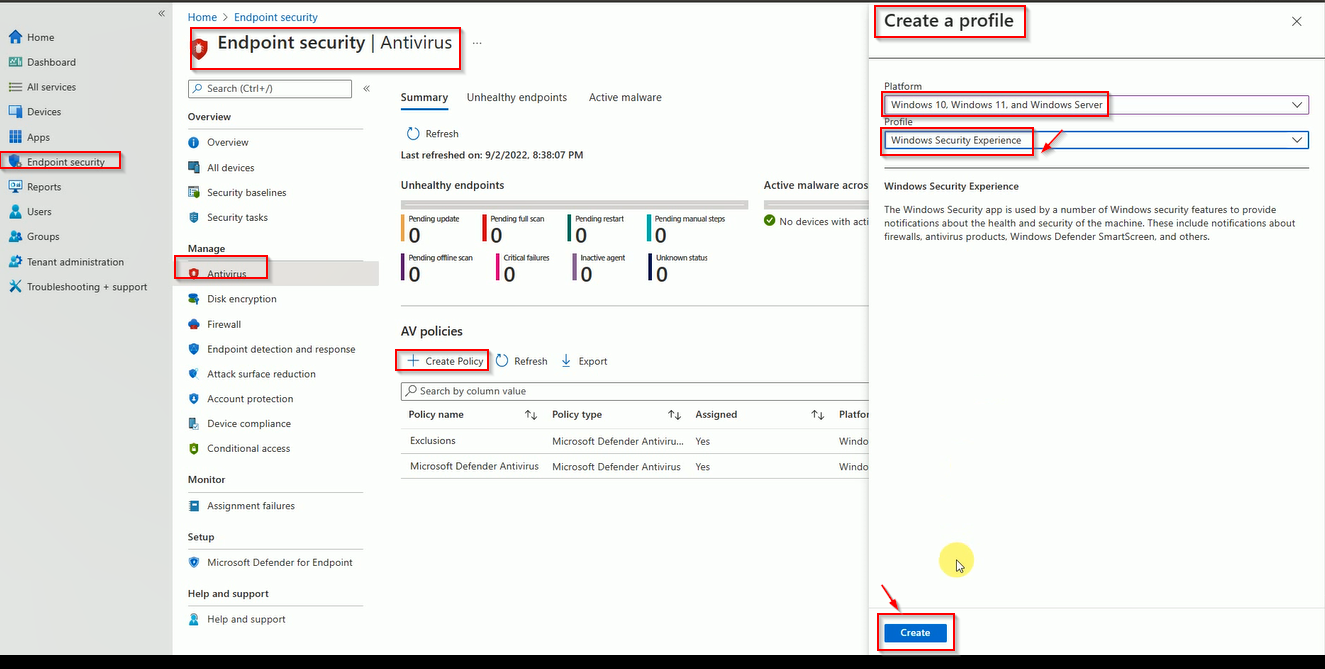
Login to Intune, Click on Endpoint Security then Antivirus and Click on New Policy then Select the Microsoft Defender Antivirus.
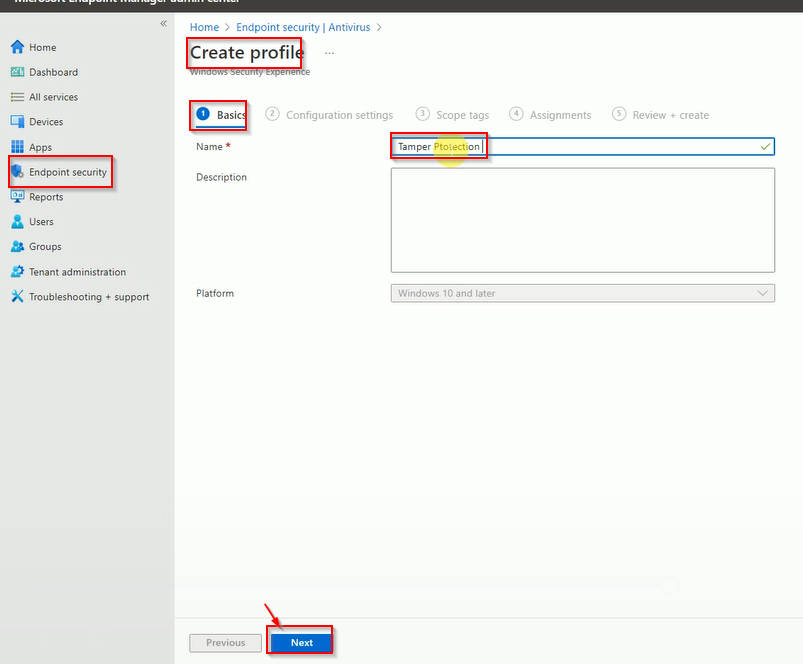
Enter the Tamper protection name.
Select Tamper protection On and other settings.
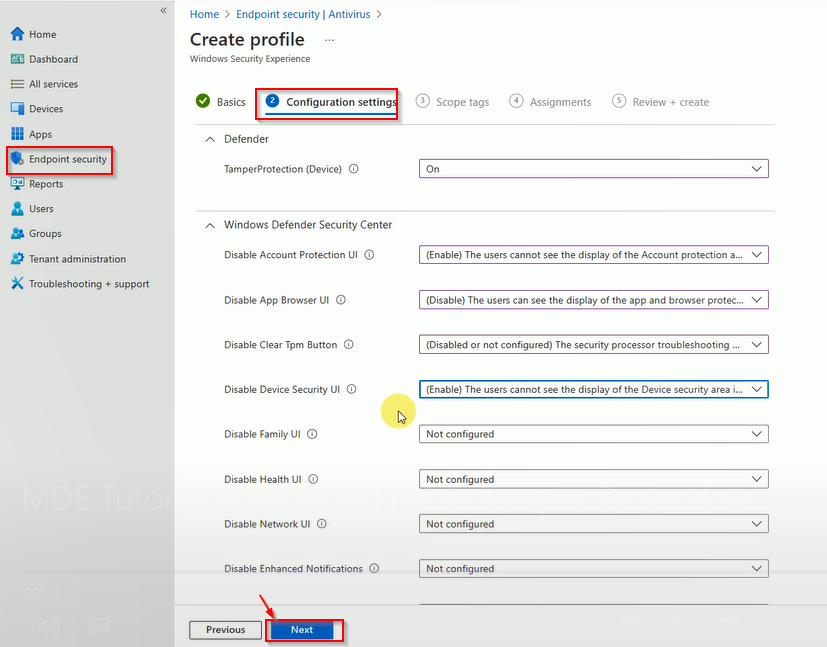
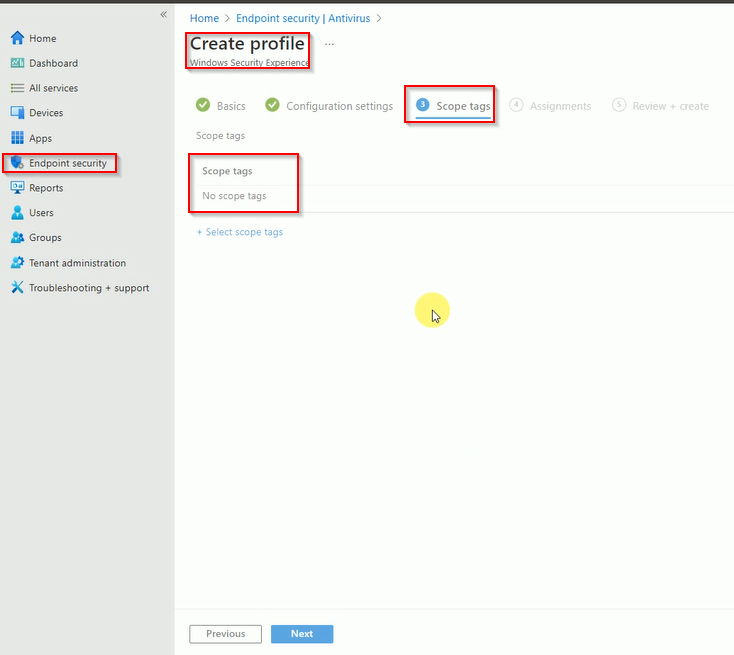
Select the tag if needed if not click on next.
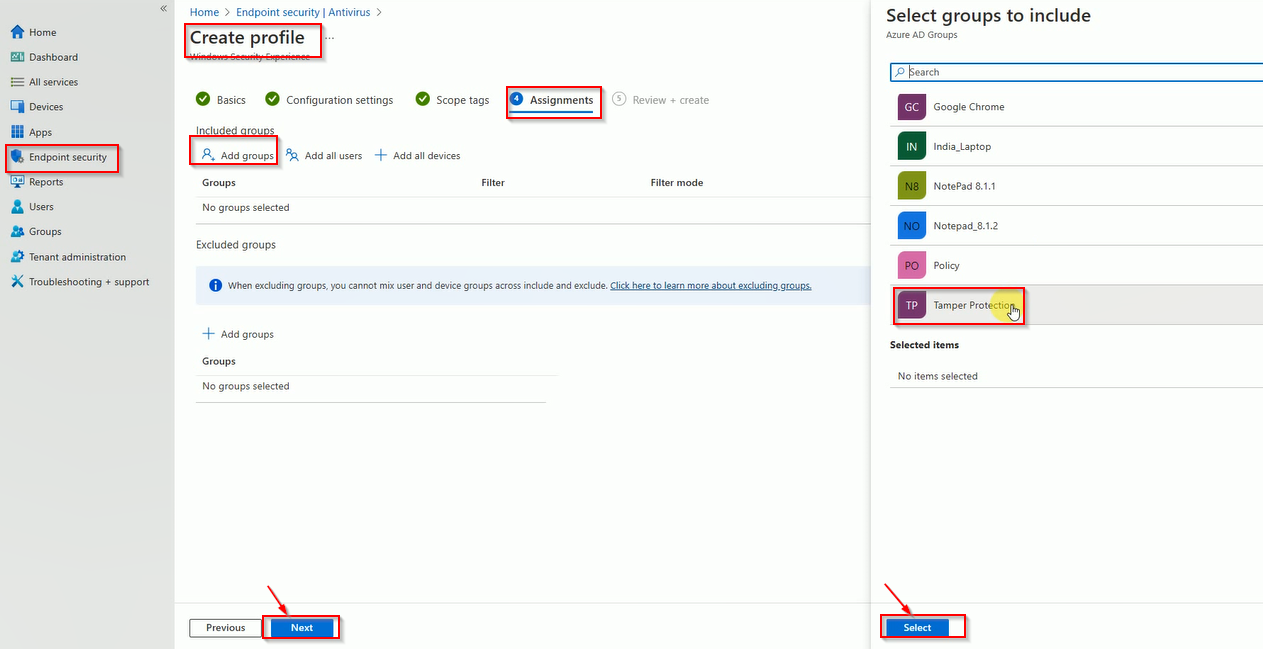
Select the group when you want to deploy policy.
Now, review the policy and click on Next.
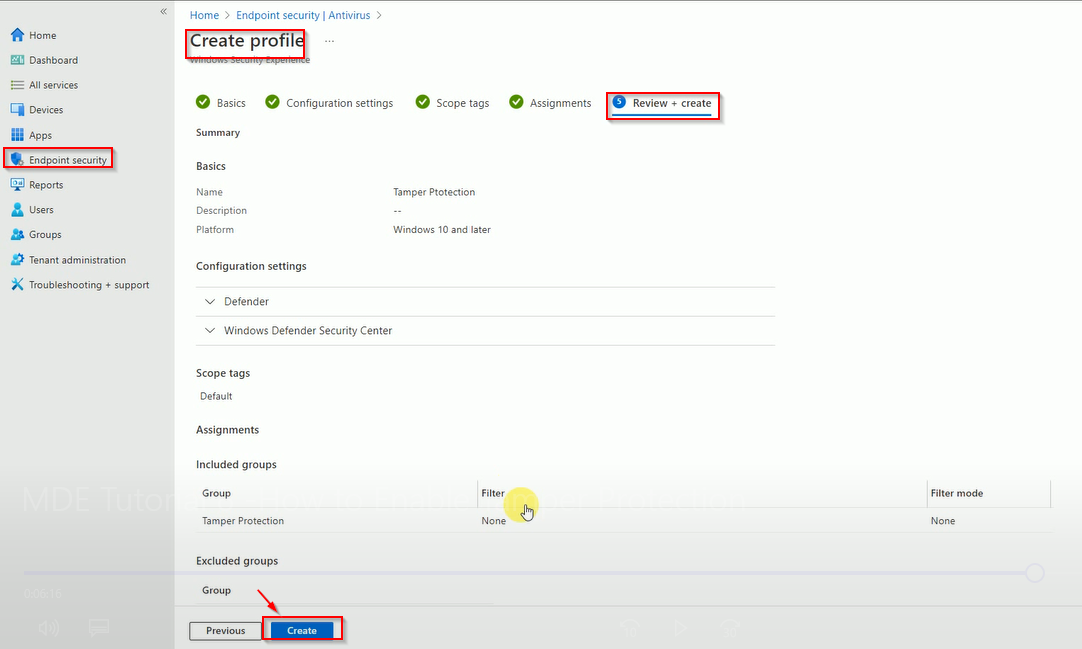
Here is finally review to check policy is created.
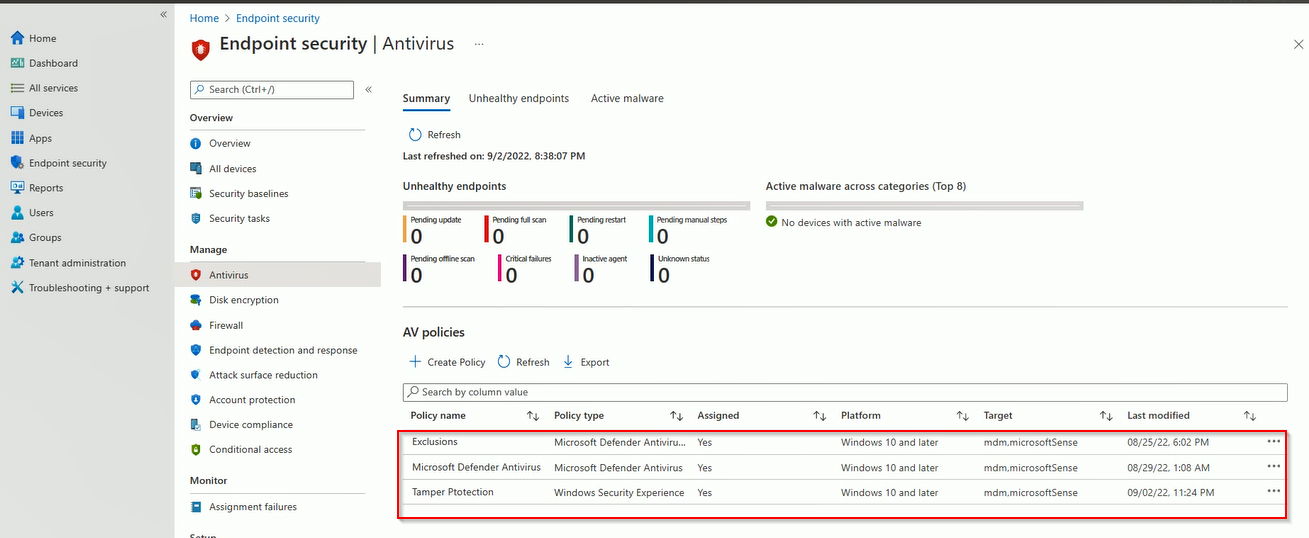
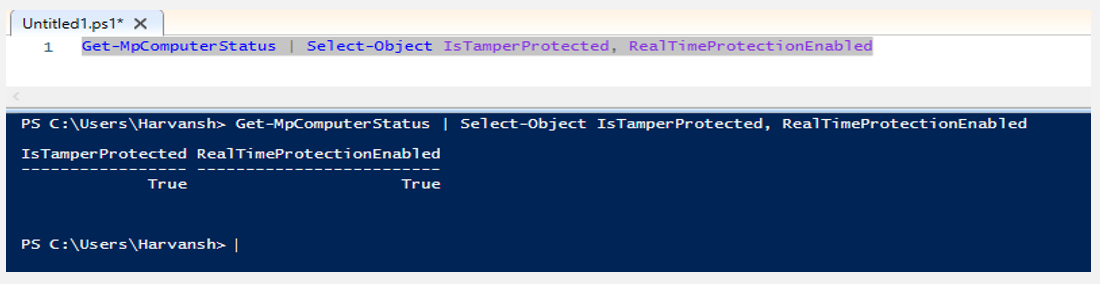
Validate that Tamper Protection is enabled.
Open the PowerShell and run below command to get status.