A Microsoft Defender Antivirus policy defines how malware protection is configured and enforced across Windows devices. These policies control real‑time protection, cloud‑based detection, scanning behavior, exclusions, ransomware protection, and tamper prevention.
In modern environments, Defender Antivirus policies are most effectively managed using Microsoft Intune, ensuring consistent and scalable security across all endpoints.
Key Settings in Microsoft Defender Antivirus Policy
🛡️ Real‑Time Protection
- Monitors files and processes continuously
- Blocks malicious behavior instantly
- Must remain enabled for baseline security
☁️ Cloud‑Delivered Protection
- Leverages Microsoft threat intelligence
- Detects zero‑day and emerging threats
- Recommended protection level: High / Advanced
🔍 Scheduled Scans
- Quick Scan (daily or at logon)
- Full Scan (weekly or during maintenance windows)
- Prevents performance impact while maintaining coverage
🚫 Exclusions
- Files
- Folders
- File extensions
- Processes
🔐 Tamper Protection
- Prevents users and malware from changing Defender settings
- Critical for preventing security bypass
- Should always be enabled in enterprise environments.
💥 Ransomware Protection
Includes:
- Controlled Folder Access
- Protection for Documents, Desktop, Pictures, and custom folders
- Blocks unauthorized app access
🧠 Behavior Monitoring
- Detects suspicious activities rather than signatures
- Effective against file‑less and script‑based attacks.
| Setting | Recommended Value |
|---|---|
| Real‑Time Protection | Enabled |
| Cloud Protection | Enabled |
| Sample Submission | Enabled |
| Tamper Protection | Enabled |
| Weekly Full Scan | Enabled |
| Behavior Monitoring | Enabled |
| ASR Rules | Enabled (Audit → Block) |
| Ransomware Protection | Enabled |
Microsoft Defender Antivirus Policy vs Defender for Endpoint Policy
| Aspect | Antivirus Policy | MDE Policy |
|---|---|---|
| Malware prevention | ✅ Yes | ✅ Yes |
| EDR & investigation | ❌ No | ✅ Yes |
| Automated remediation | Limited | Advanced |
| Threat hunting | ❌ No | ✅ Yes |
Follow the below steps to create Antivirus Policy.
Login to Intune, Click on Endpoint Security then Antivirus and Click on New Policy then Select the Microsoft Defender Antivirus. 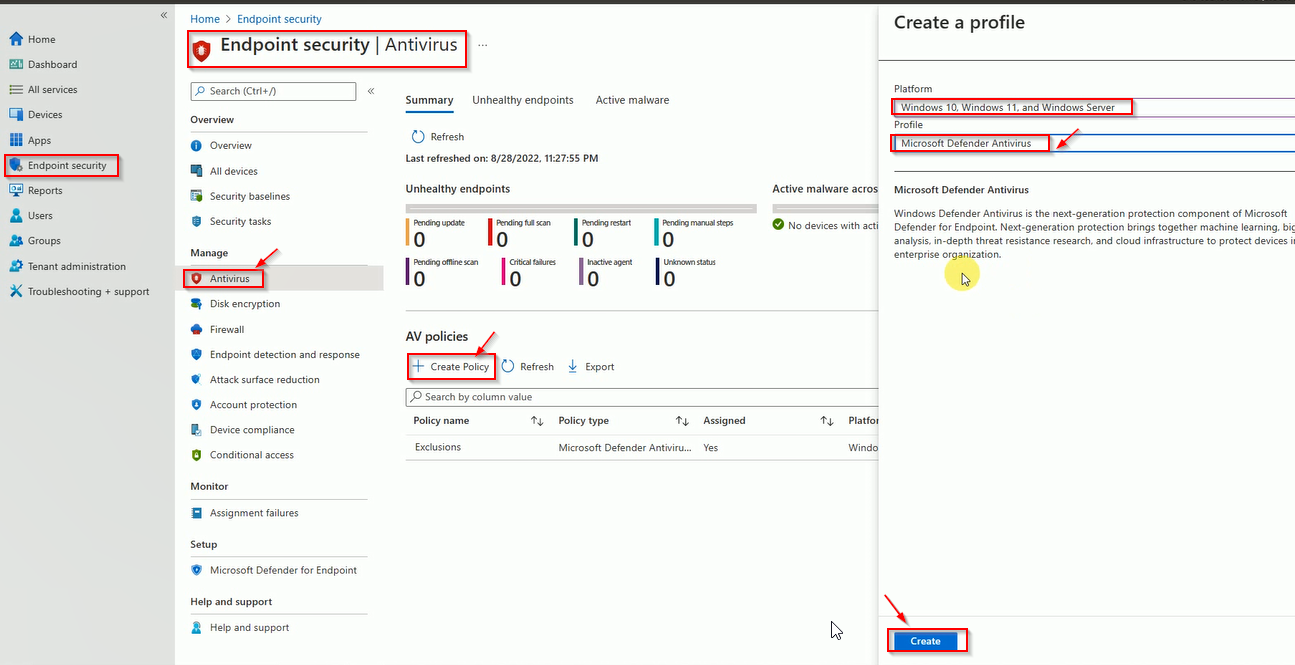
Enter the Policy Name
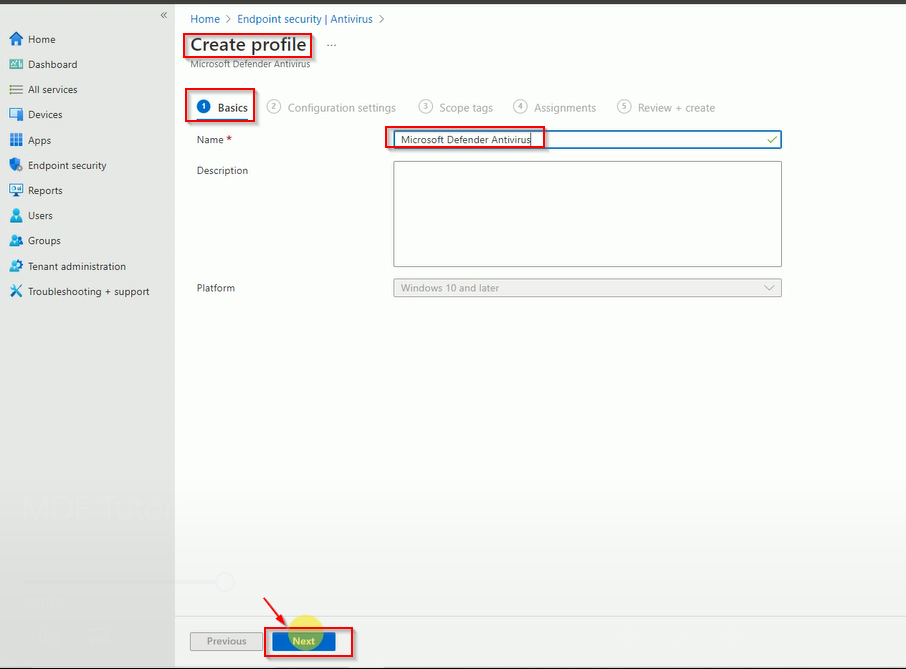
Select all the required settings as your company standard.
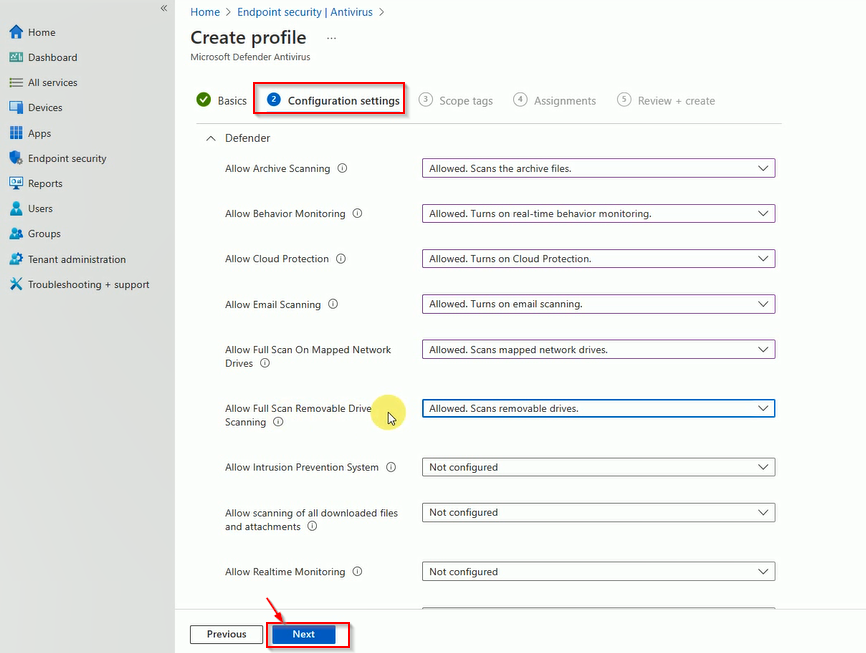
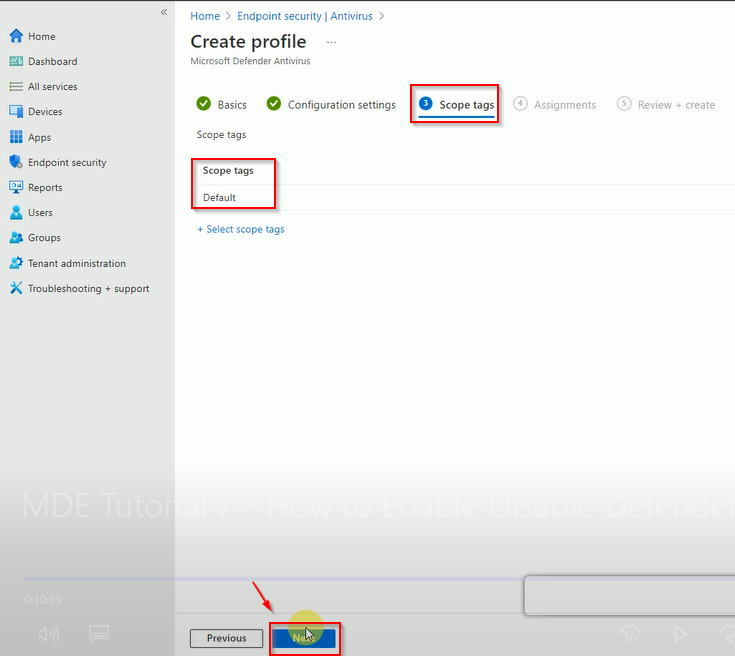
You can add the tags if need if not can leave it on default.
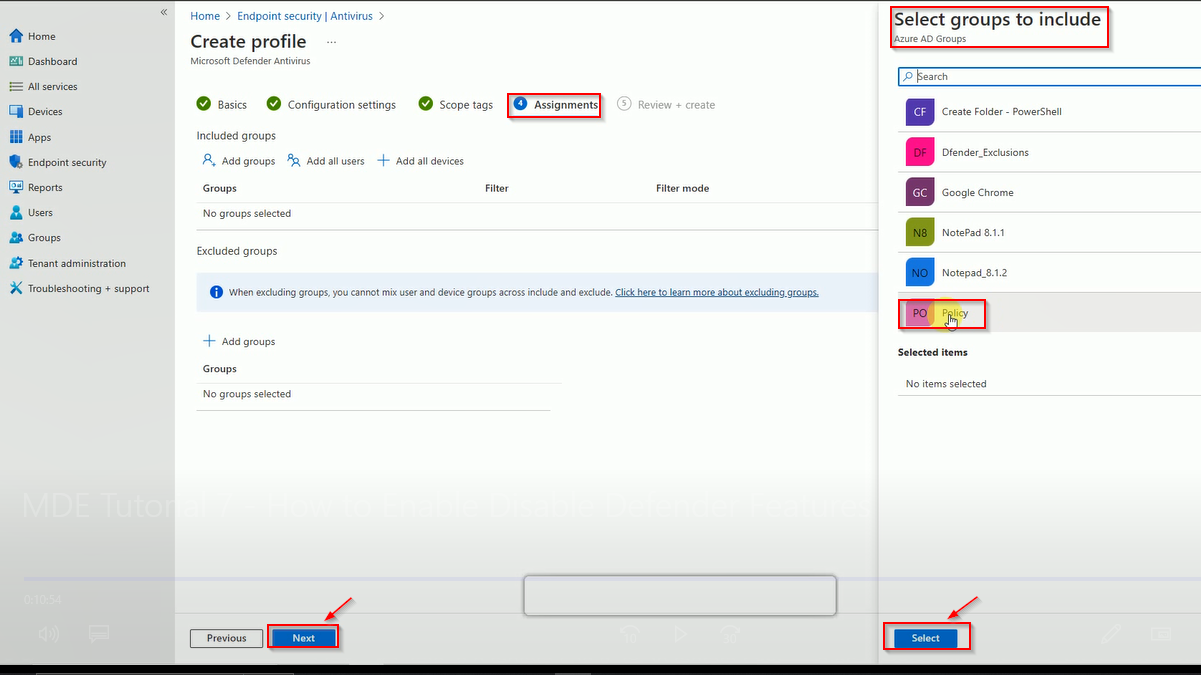
Select the group Name you can want to deploy the policy.
No review the policy and Click on next if everything looks ok.
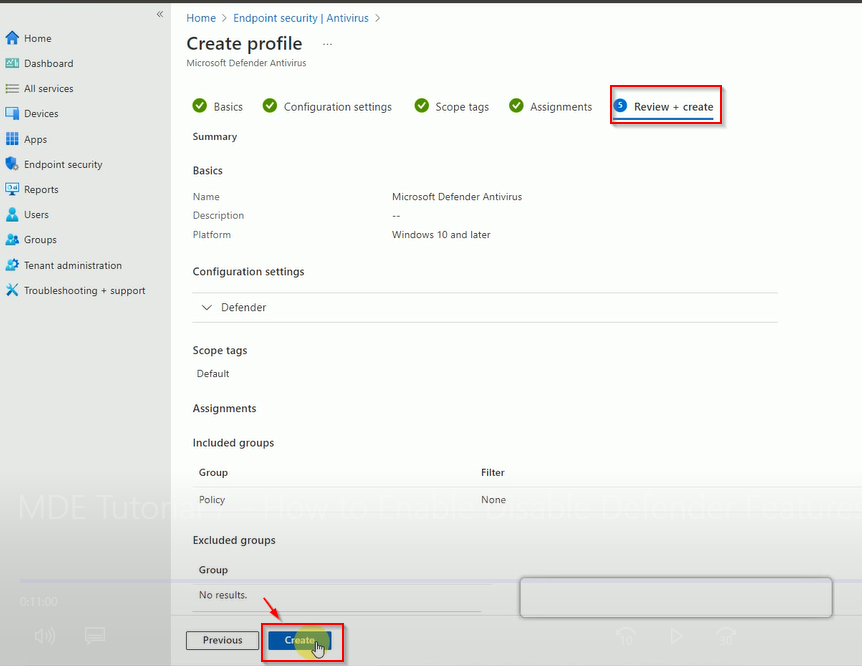
When policy is created then search with the name.
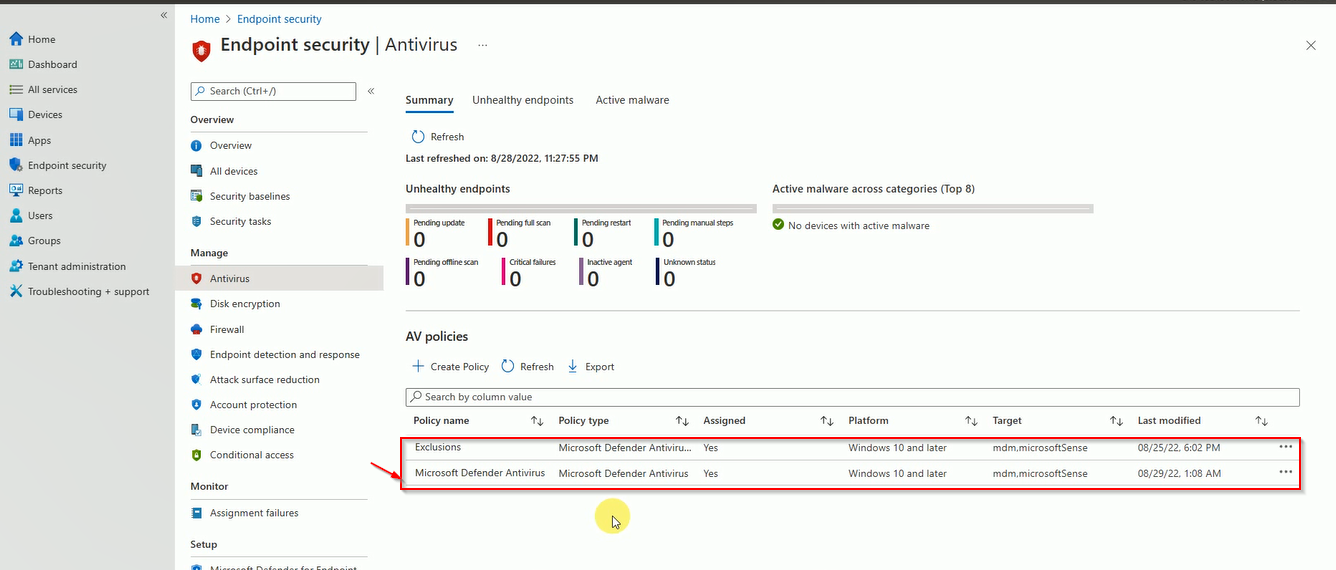
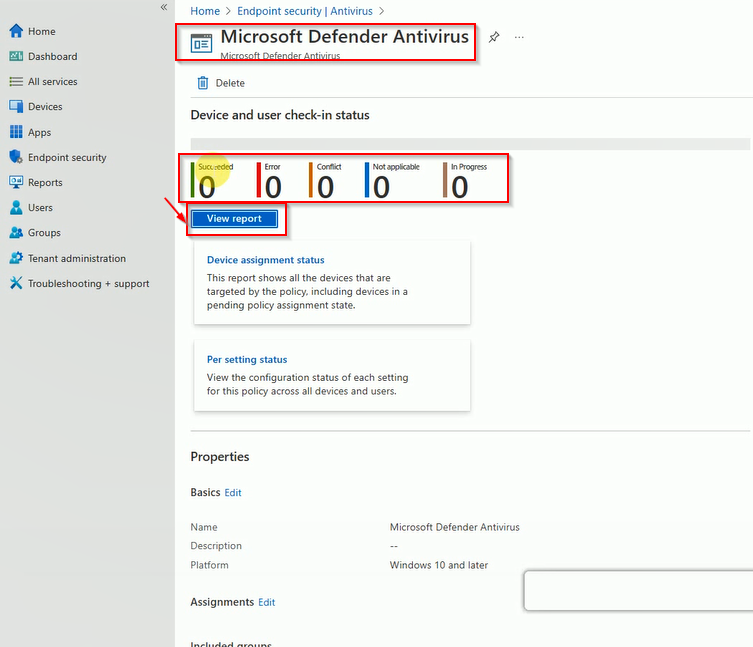
To get the deployment status report, open the policy and check here deployment status.