Defender Onboarding with Microsoft Intune Policy
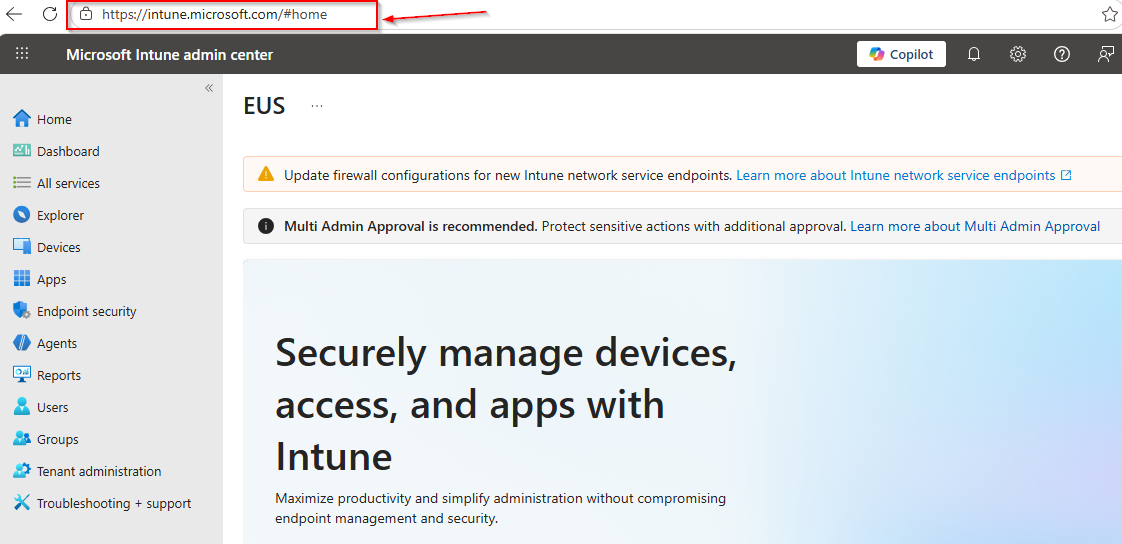
Login to Microsoft Intune on https://intune.microsoft.com/
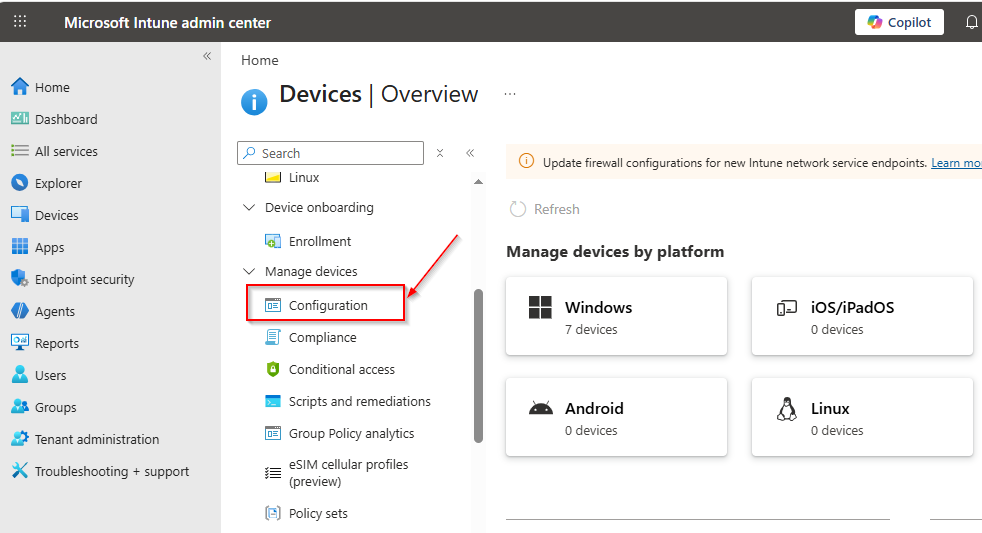
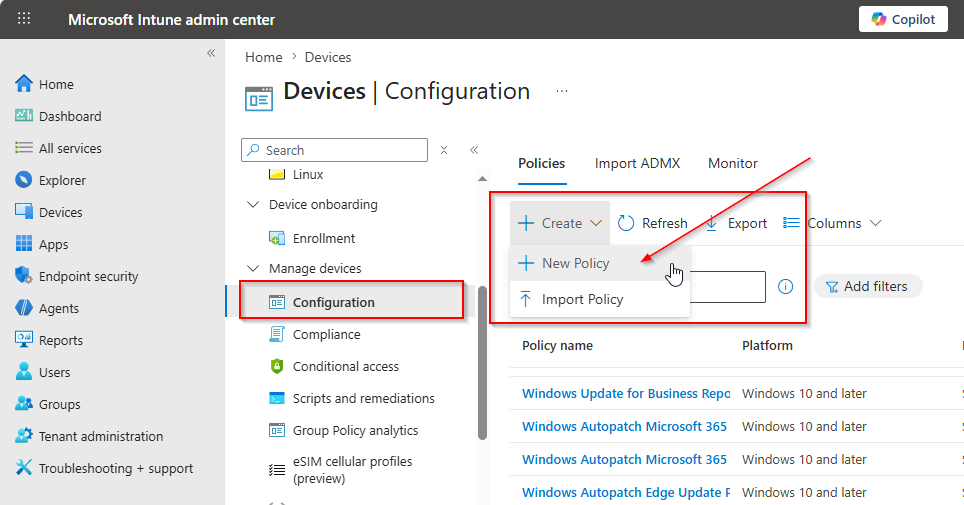
Click on Devices and then click on Configurations.
Now click on Create button and click on New Policy.
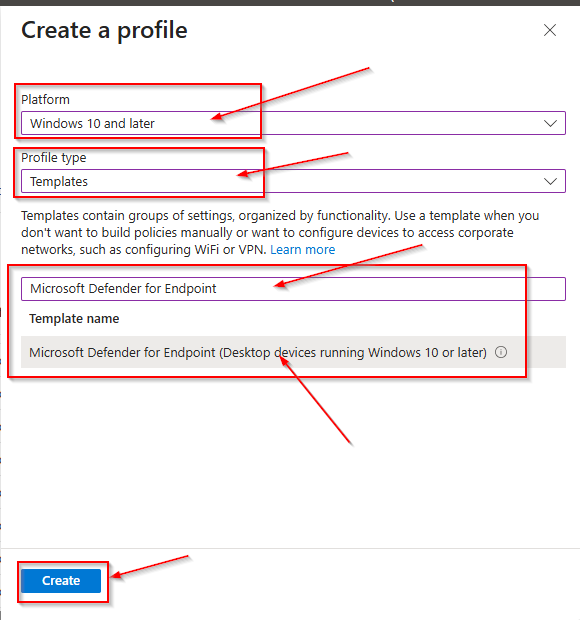
Now Select the Platform and Profile Type then search the template name “Microsoft Defender for Endpoint” then click on Create.
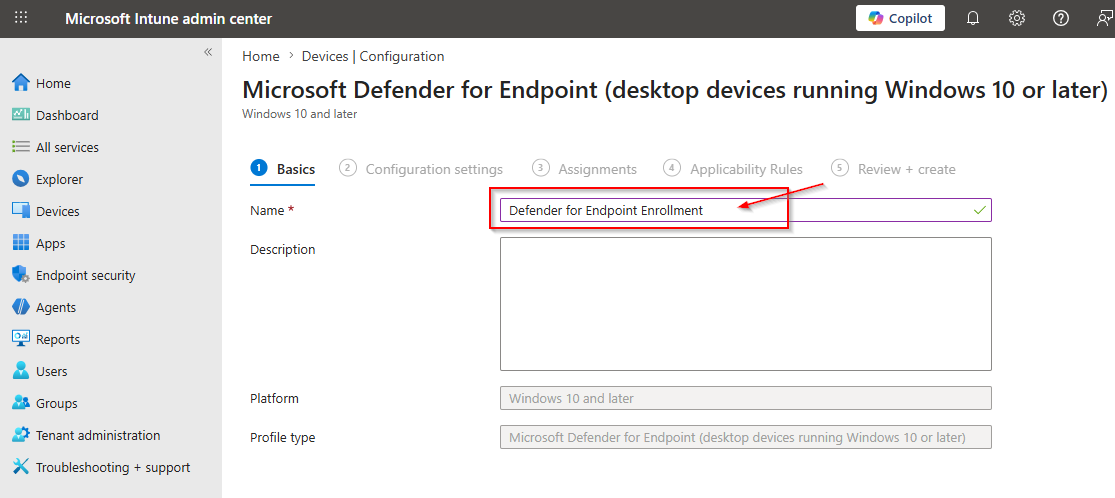
Enter the Policy name you want to provide.
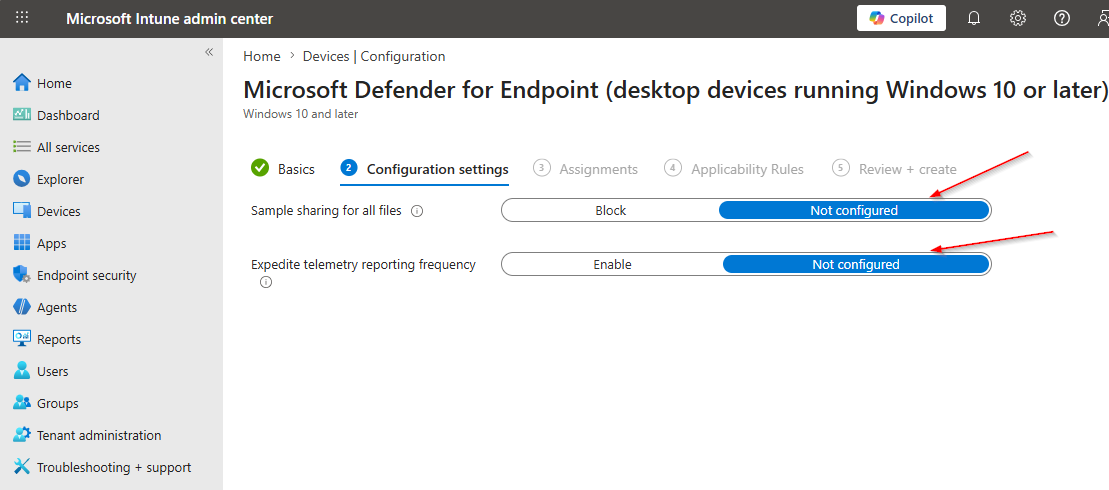
Select not configured as showing in shreenshot.
Select the deployment group where you want to onboard the defender. Then click on next.
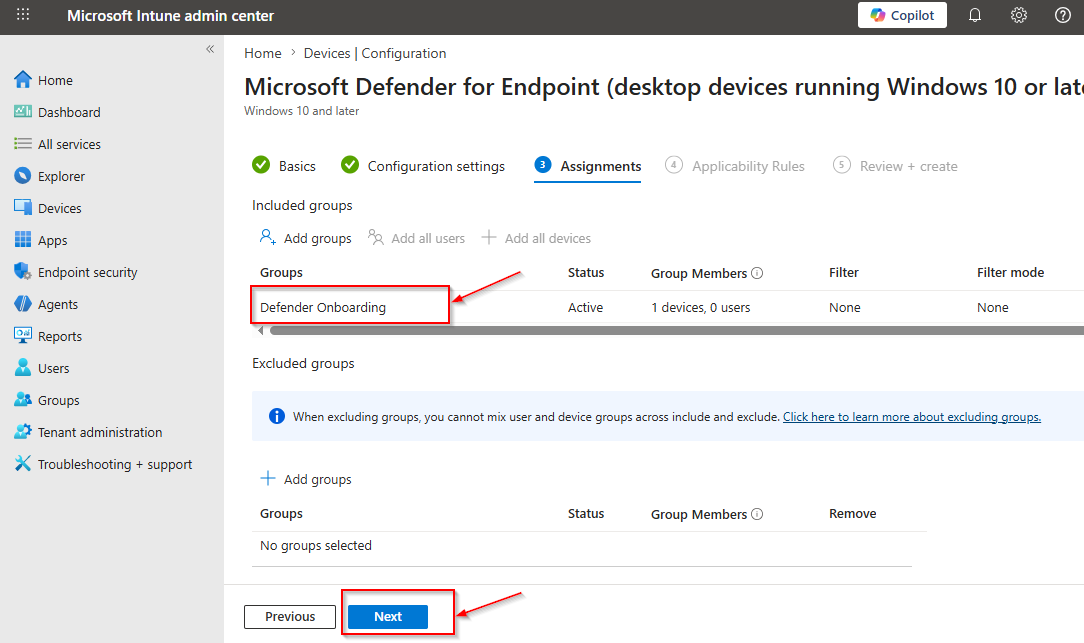
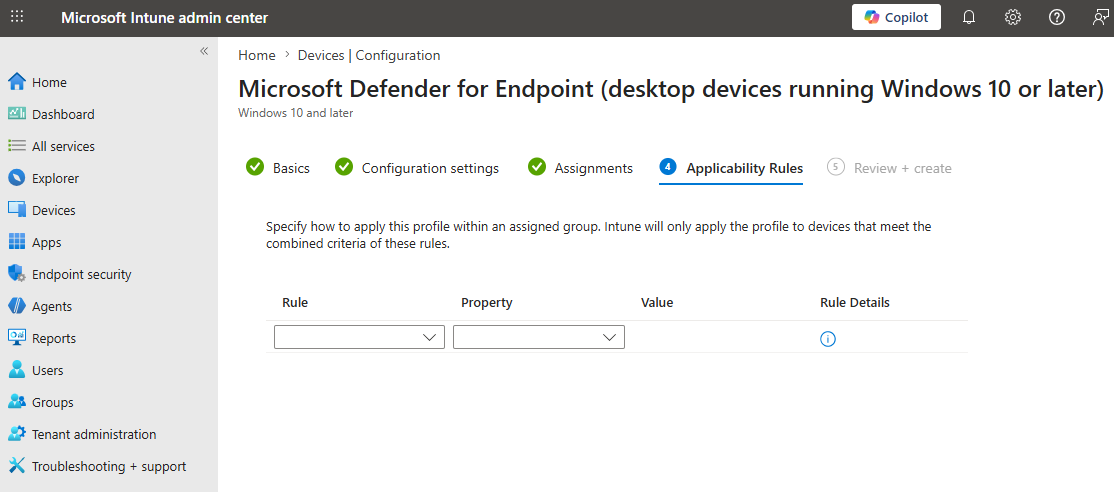
No need to change anything here, click on Next.
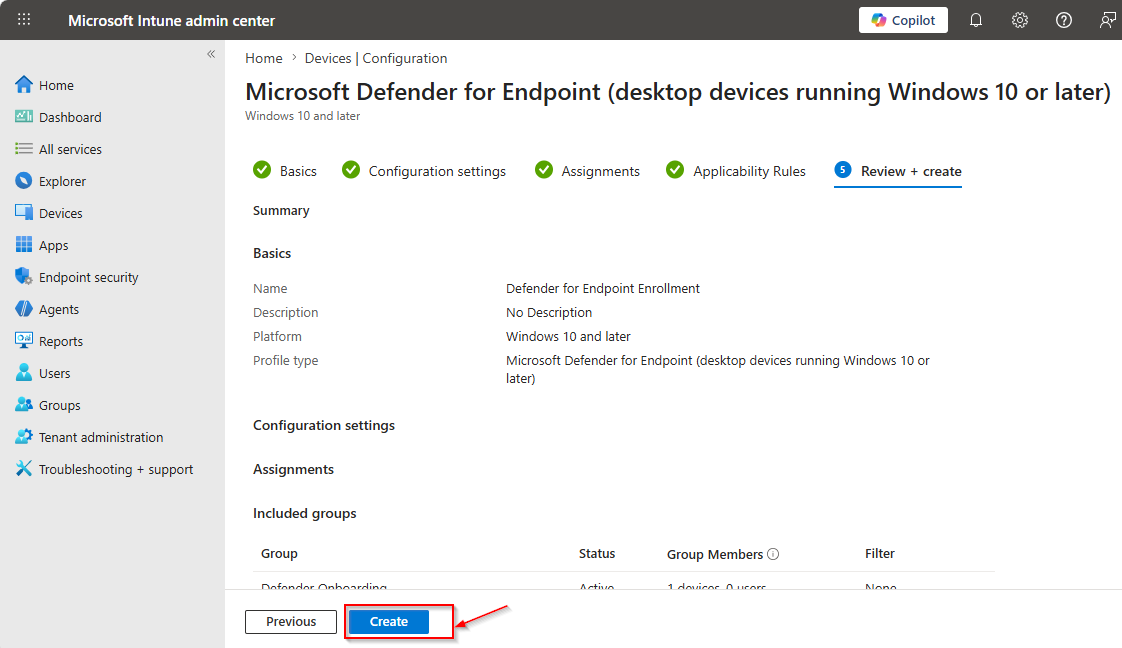
Now, review your policy and click on create.
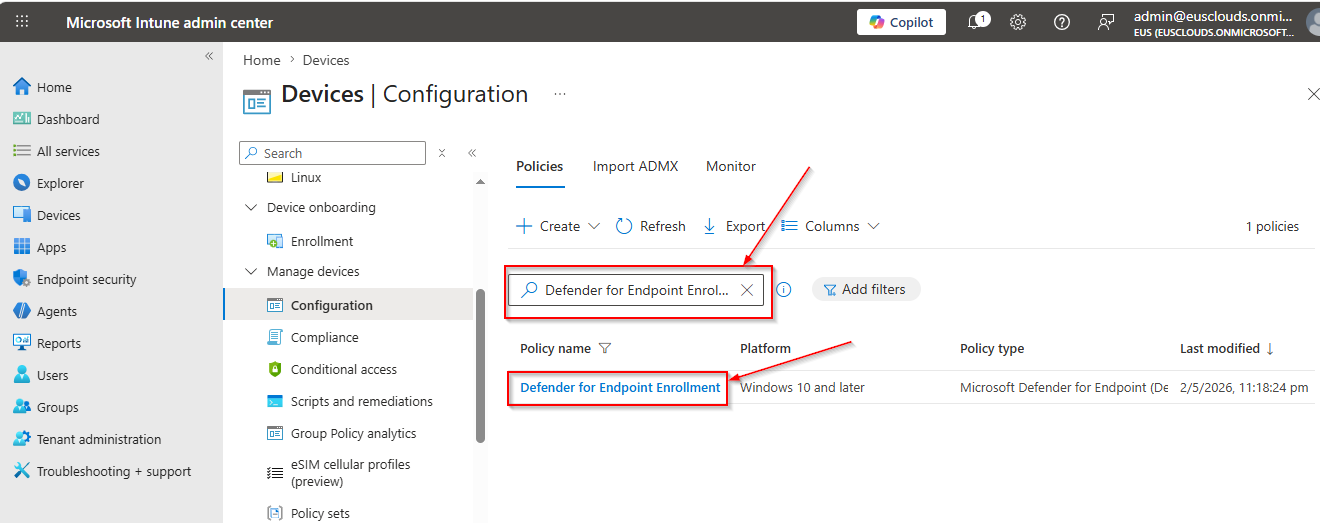
After successfully create the policy, search the policy name to verify that policy is created.
Device On-boarding validation
To validate the device is on-boarded successfully, you can validate from the Security Center or from the device side.
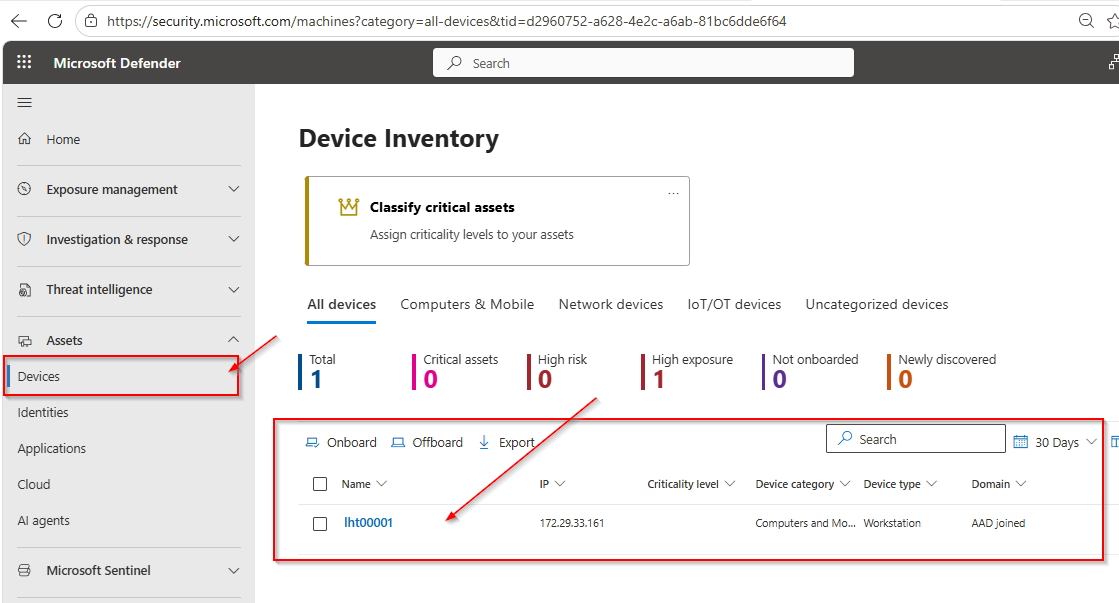
- Login to Security Center https://security.microsoft.com/
- Go to Assets then Devices, here we can see all the devices are on-boarded into the defender.
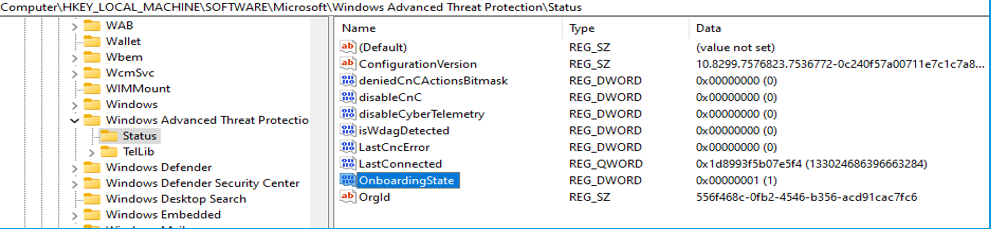
Validate Defender onboarding status from Device.
Check the registry key for Onboarding Status should e 1