What is Exclusions
- Exclusions used to exclude Extensions, Process, and Paths from the Microsoft Defender Scans.
- Exclusions apply to scheduled scans, on-demand scans, and always-on real-time protection and monitoring.
- Exclusions for process-opened files only apply to real-time protection.
- You should always evaluate the risks that are associated with implementing exclusions, and you should only exclude files that you are confident are not malicious.
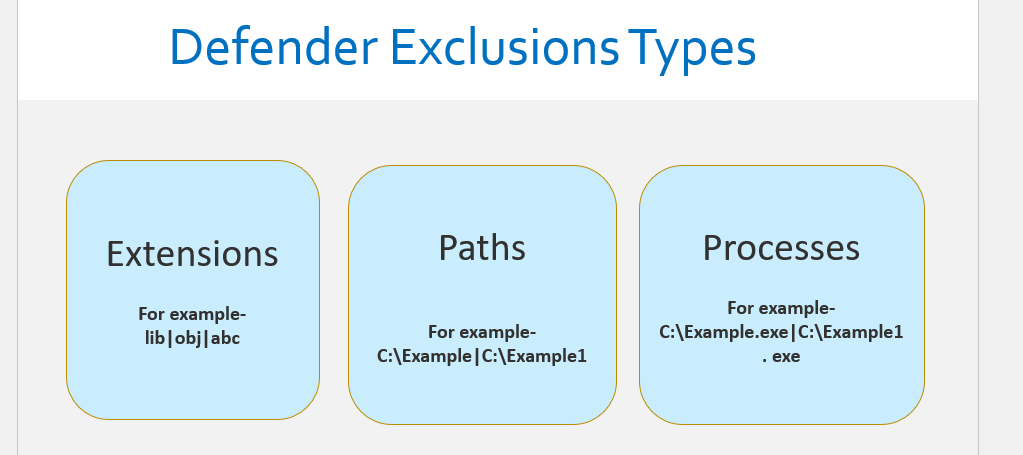
Exclusions Types
Wildcards in Exclusions
Wildcard | Where | Examples |
* (asterisk) | File Extension | C:\MyData\*.txt |
Folder name | C:\somepath\*\Data and its subfolders | |
In folder exclusions – Use multiple * with folder slashes \ to indicate multiple nested folders. | C:\Serv\*\*\Backup |
Wildcard | Where | Examples |
? (question mark) | File Extension | C:\MyData\my?.zip |
Folder name | C:\somepath\?\Data | |
In folder exclusions – Use multiple * with folder slashes \ to indicate multiple nested folders. | C:\somepath\test0?\Data |
System Environment variable | Redirects to this |
%APPDATA% | C:\Windows\system32\config\systemprofile\Appdata\Roaming |
%APPDATA%\Microsoft | C:\Windows\System32\config\systemprofile\AppData\Roaming\Microsoft |
%LOCALAPPDATA% | C:\Windows\System32\config\systemprofile\AppData\Local |
%ProgramData% | C:\ProgramData |
%ProgramFiles% | C:\Program Files |
%ProgramFiles%\Common Files | C:\Program Files\Common Files |
%ProgramFiles(x86)% | C:\Program Files (x86) |
%SystemDrive% | C: |
%SystemDrive%\Program Files | C:\Program Files |
%SystemRoot% | C:\Windows |
%windir% | C:\Windows |
%windir%\Fonts | C:\Windows\Fonts |
%ALLUSERSPROFILE% | C:\ProgramData |
%PUBLIC% | C:\Users\Public |
%USERPROFILE% | C:\Windows\system32\config\systemprofile |
Steps to create Exclusion policy
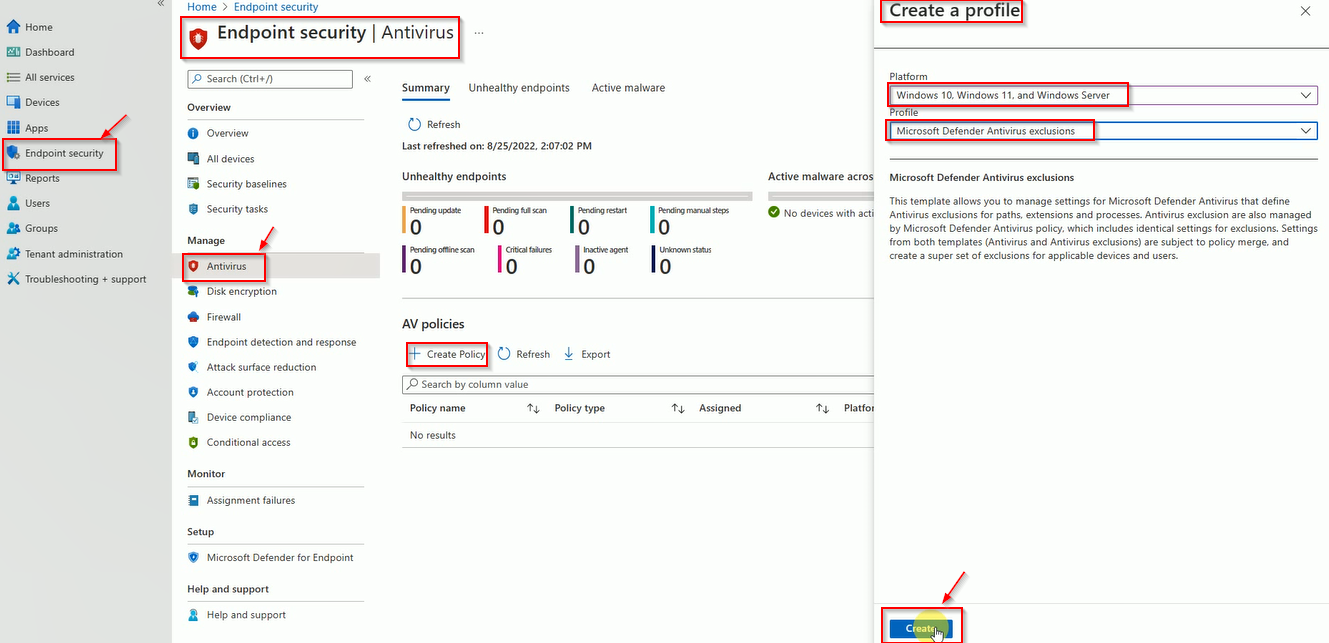
Follow the below steps to create exclusion policy.
Login to Intune and Click on Endpoint Security then Antivirus and now click on Create Policy as showing in screenshot.
Enter the Exclusion policy name.
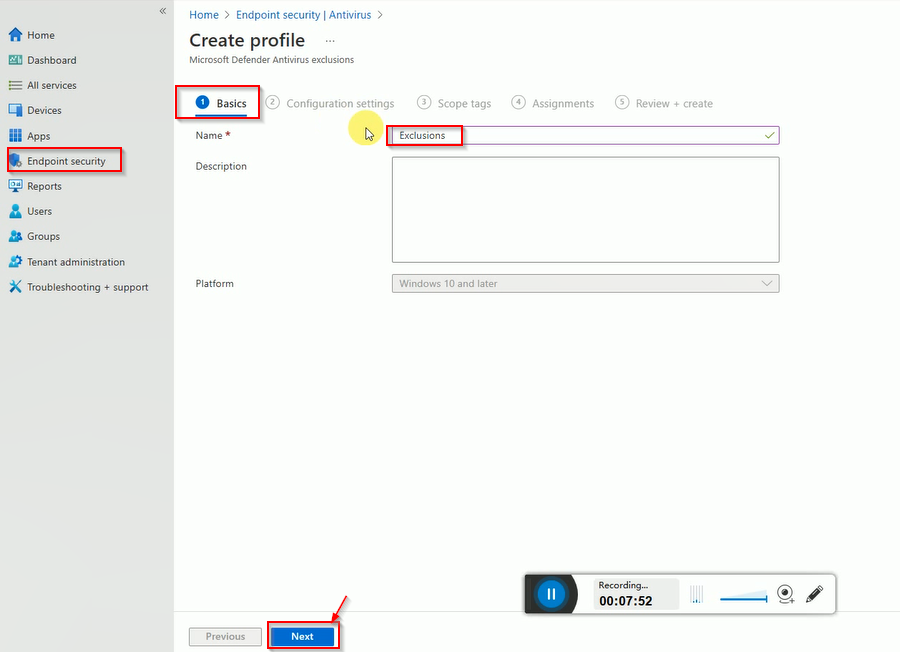
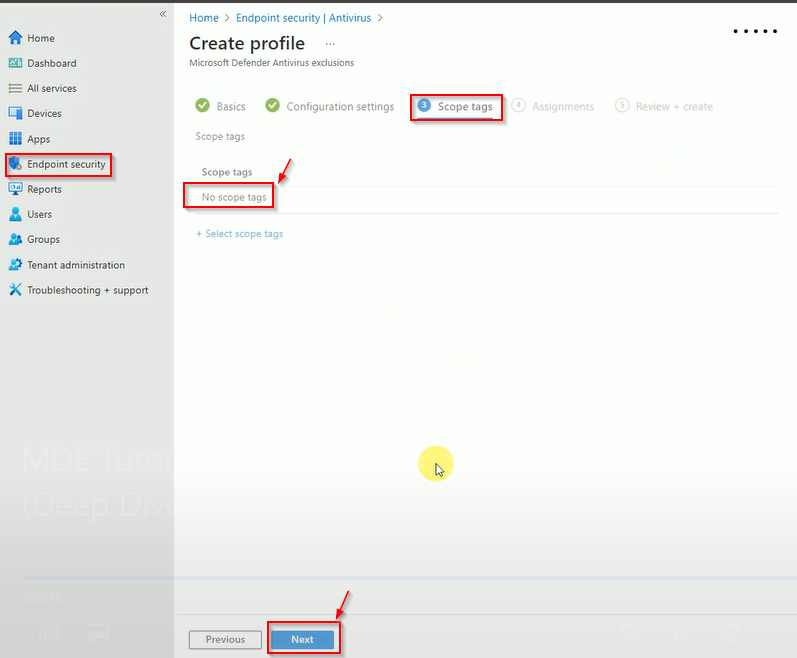
Enter the exclusions details.
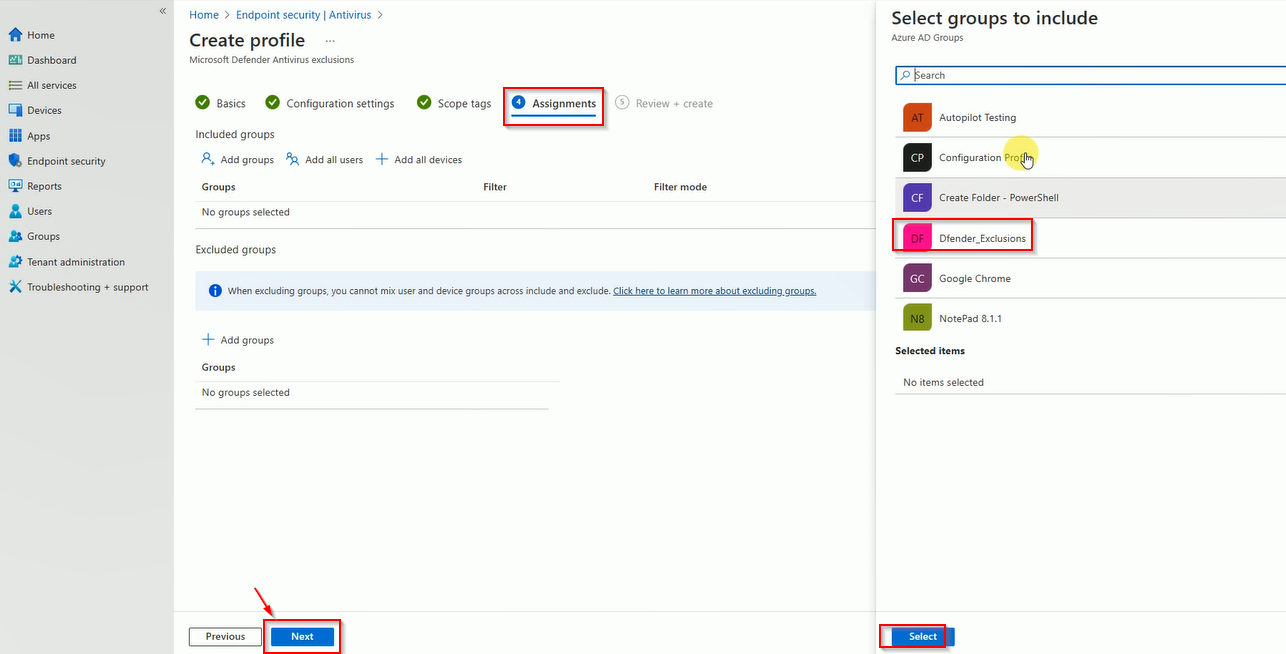
Select the group name where you want to deploy the policy.
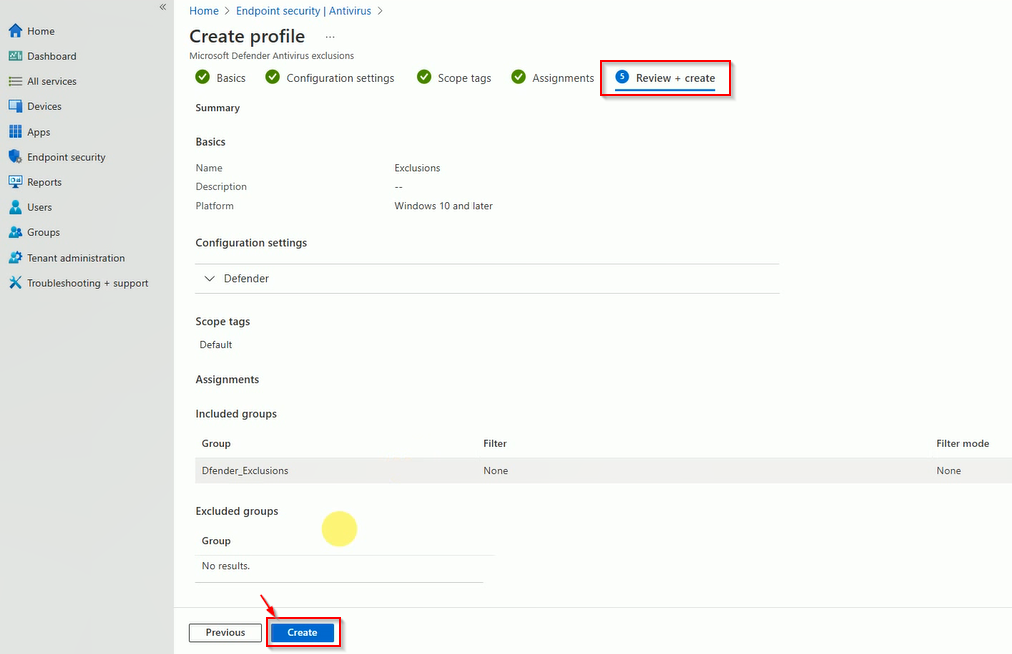
Now review the policy and validate that everything looks OK and click on create.
Check the exclusion policy created.
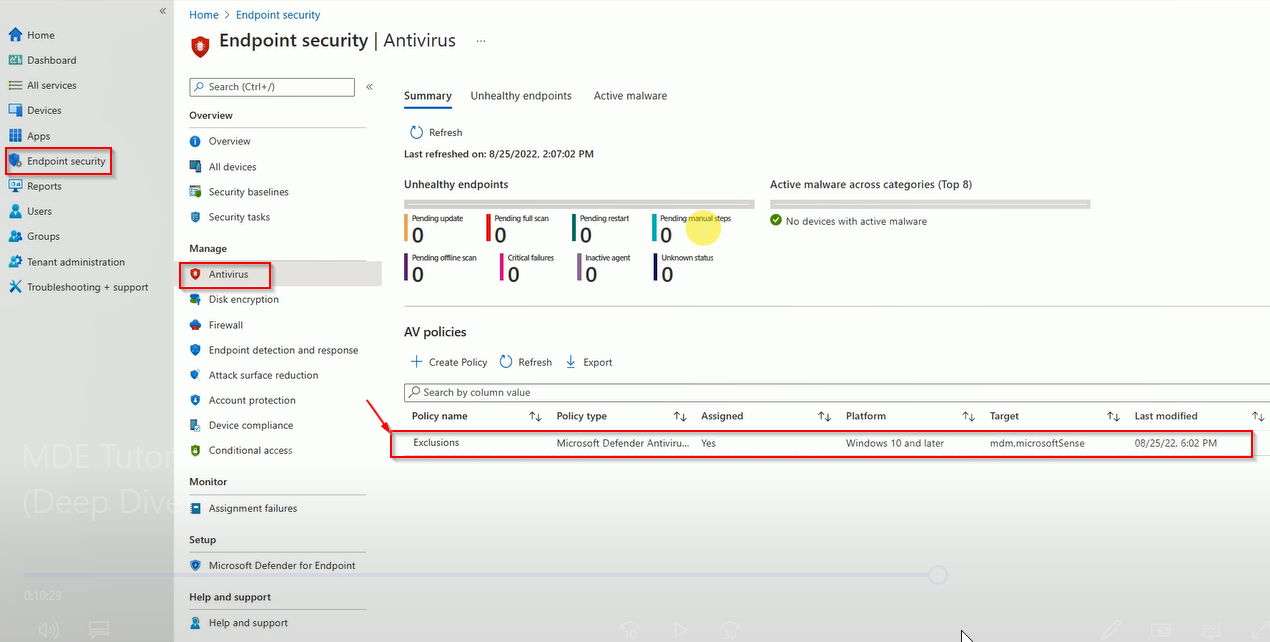
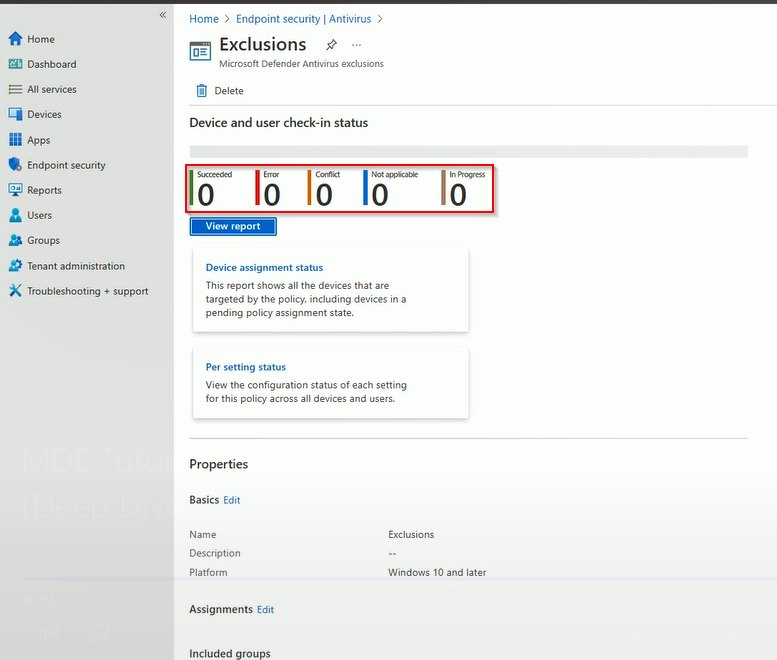
Open the policy and check the deployment status.
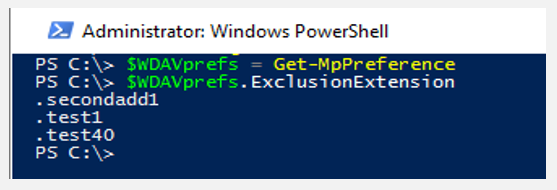
Validate that Exclusions is applied on device.
Open PowerShell with admin and use the below command.
$WDAVprefs = Get-MpPreference
$WDAVprefs.ExclusionExtension
$WDAVprefs.ExclusionPath